리액트 네이티브
React native Login with google, firebase
youngdeok
2023. 3. 2. 19:29
2가지 방법으로 로그인을 구현 할 것이다. 1번째 google 2번째 firebase를 통해서
https://devbksheen.tistory.com/entry/React-Native-Firebase로-회원-인증하기
https://juzero-space.tistory.com/288
- google login
필요 라이브러리
npm install @react-native-firebase/app --save npm install @react-native-firebase/auth --save npm install @react-native-google-signin/google-signin --save
firebase에서 새 재공업체 추가.

import auth from "@react-native-firebase/auth";
import {GoogleSignin} from '@react-native-google-signin/google-signin';
export const googleSigninConfigure = () => {
    GoogleSignin.configure({
      webClientId:
        '776883032422-hla5brdij4eenmhhat84bdtu5fbvhncc.apps.googleusercontent.com',
    });
  };

export const onGoogleButtonPress = async () => {
    const {idToken} = await GoogleSignin.signIn();
    const googleCredential = auth.GoogleAuthProvider.credential(idToken);
    return auth().signInWithCredential(googleCredential);
  };
const signInWithGoogle = async () => {
    try {
      await onGoogleButtonPress()
      props.navigation.navigate("HomeScreen")
    } catch(e) {
      Alert.alert("로그인에 실패셨습니다");
    }
  }
위의 코드를 원하는 곳에 삽입하면 끝


google login
- firebase email
2-1 로그인
필요 라이브러리
npm install @react-native-firebase/app --save npm install @react-native-firebase/auth --save
위와 같은 방법으로 제공업체에 email을 추가해 준다.
export function signIn({email, password}) {
  return auth().signInWithEmailAndPassword(email, password);
}
추가!
const [email, setEmail] = useState('');
const [password, setpassword] = useState('');
값을 받아 오기 위해 email, password를 받을 변수 추가 (변수 이름을 다른 것으로 하면 오류가 뜬다.)
const signInSubmit = async () => {
    const info = {email, password};
    try {
      const {user} = await signIn(info);
      console.log(user);
      dispatch({type:'login',step: email})
      console.log(checkLogin);
      props.navigation.navigate("HomeScreen")
    } catch (e) {
      Alert.alert("로그인에 실패셨습니다");
    }
  }

  const signInWithGoogle = async () => {
    try {
      await onGoogleButtonPress()
      props.navigation.navigate("HomeScreen")
    } catch(e) {
      Alert.alert("로그인에 실패셨습니다");
    }
  }
참고로 secureTextEntry={true}를 input text안에 집어 넣어 password의 보안성을 지킨다.
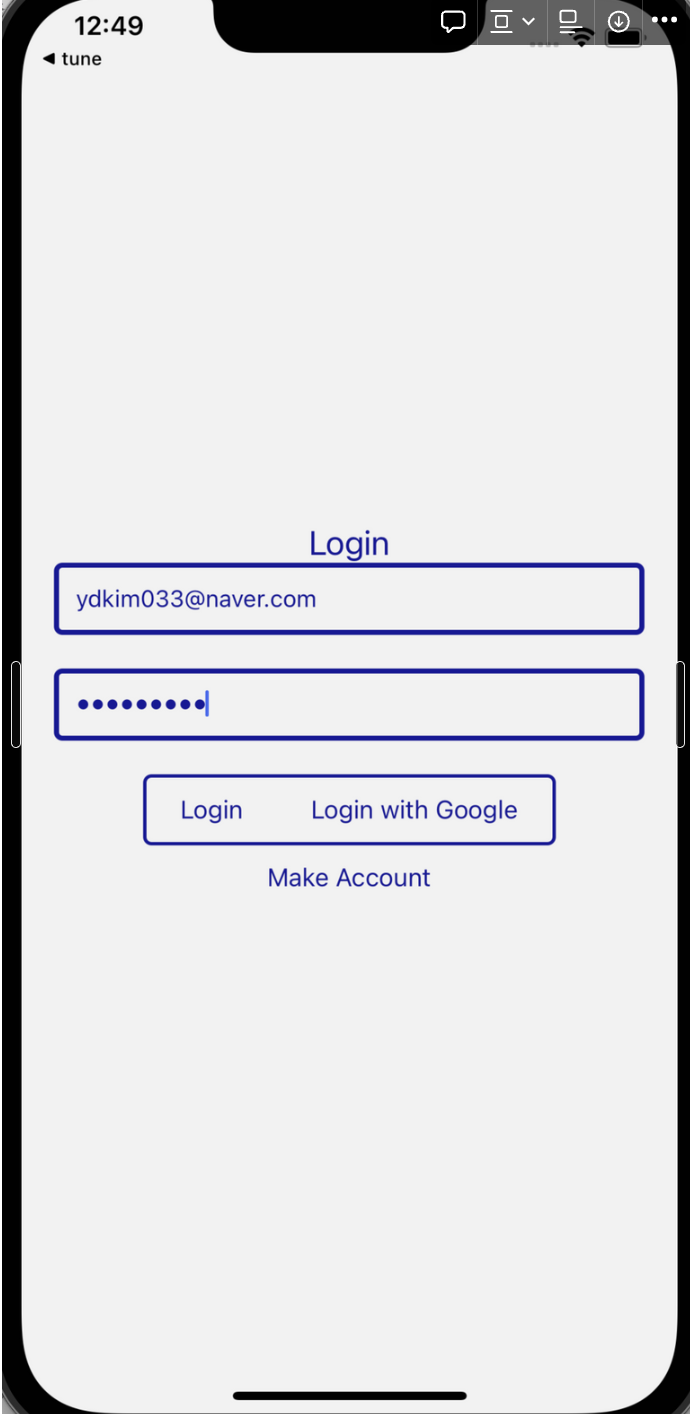
2-2 회원가입
export function signUp({email, password}) {
  return auth().createUserWithEmailAndPassword(email, password);
}
추가
const resultMessages = {
  "auth/email-already-in-use": "이미 가입된 이메일입니다.",
  "auth/wrong-password": "잘못된 비밀번호입니다.",
  "auth/user-not-found": "존재하지 않는 계정입니다.",
  "auth/invalid-email": "유효하지 않은 이메일 주소입니다."
}
// 코드에 따라 다른 오류를 뱉는데 그걸 이용한 오류 객체이다.

const LoginScreen = (props) => {
  const [email, setEmail] = useState('');
  const [password, setPassword] = useState('');
  const [Checkpassword, setCheckPassword] = useState('');

  const signUpSubmit = async () => { // 회원가입 함수
    const info = {email, password};
    console.log(info)
    try {
      const {user} = await signUp(info);
      console.log(user);
      props.navigation.goBack()
    } catch (e) {
      const alertMessage = resultMessages[e.code] ?
      resultMessages[e.code] : "알 수 없는 이유로 회원가입에 실패하였습니다.";
      Alert.alert("회원가입 실패", alertMessage);
    }
  }
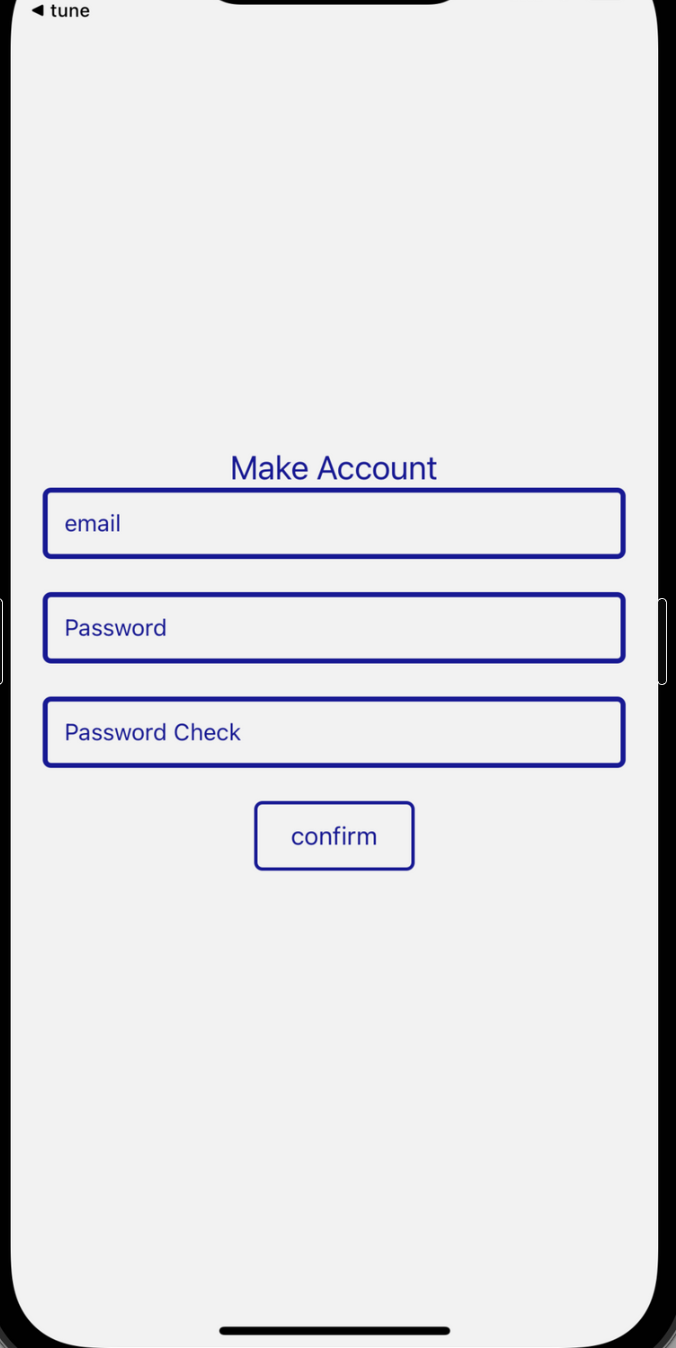
끝~